Genova
Motor
Comprehensive Guide to Motor Policy Creation and Risk Detail Entry in Vanguard Genova
This guide provides a step-by-step walkthrough of creating a new policy and entering risk details within the Vanguard Genova system. Each step includes screenshots for visual guidance, ensuring a smooth and efficient process.
Start url: https://loyaltylive.genovainsure.com//cia/underwriting/customerlist
Tab Name: Create Policy - GENOVA INSURANCE
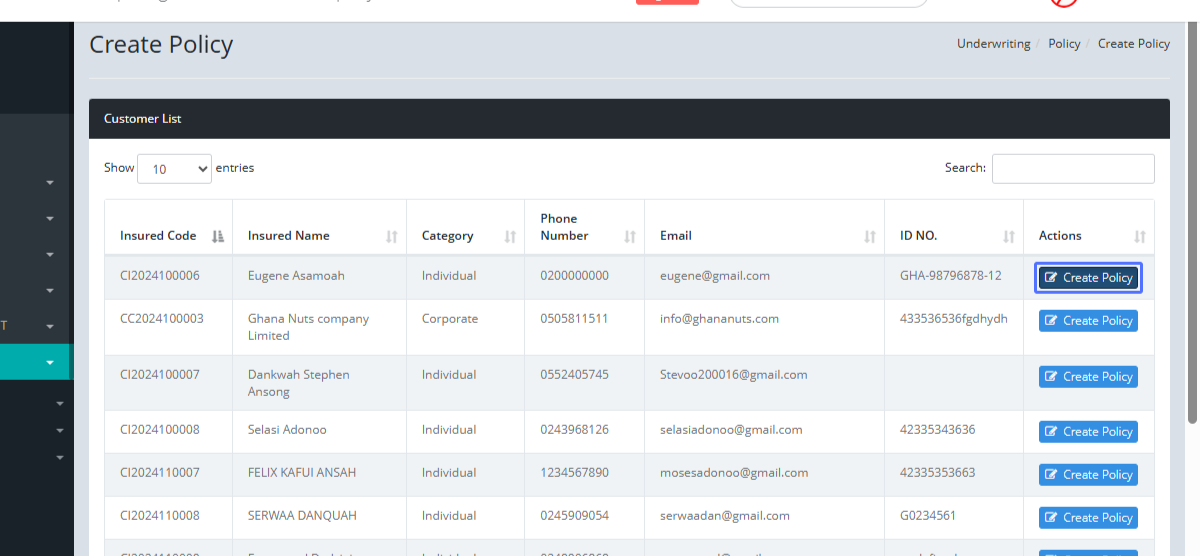
Initiate Policy Creation: Click "Create Policy"
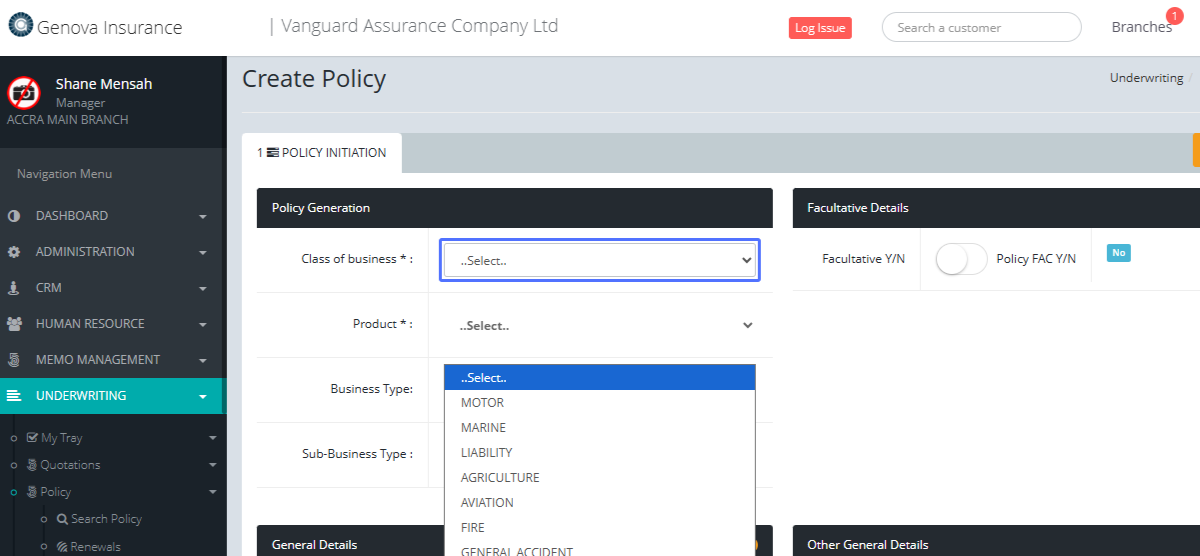
Select the Motor Policy Class from the Class of Business dropdown.
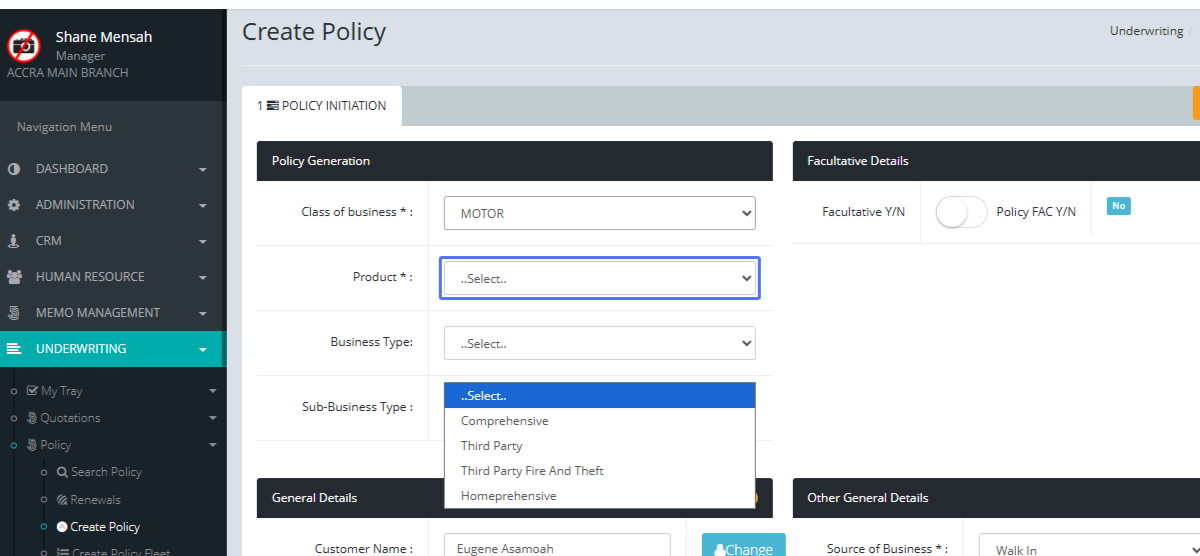
Select the Motor Product: Choose from Comprehensive, Third Party, etc.
Select Business Type: Choose between Direct and Inward.
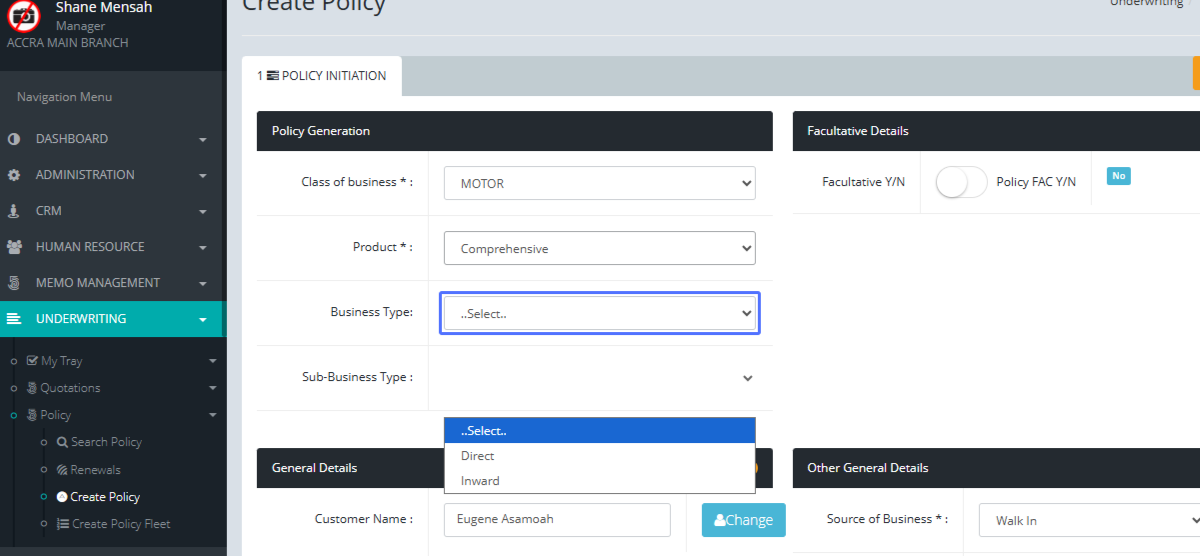
Enter Policy Start Date: Input the policy's start date.
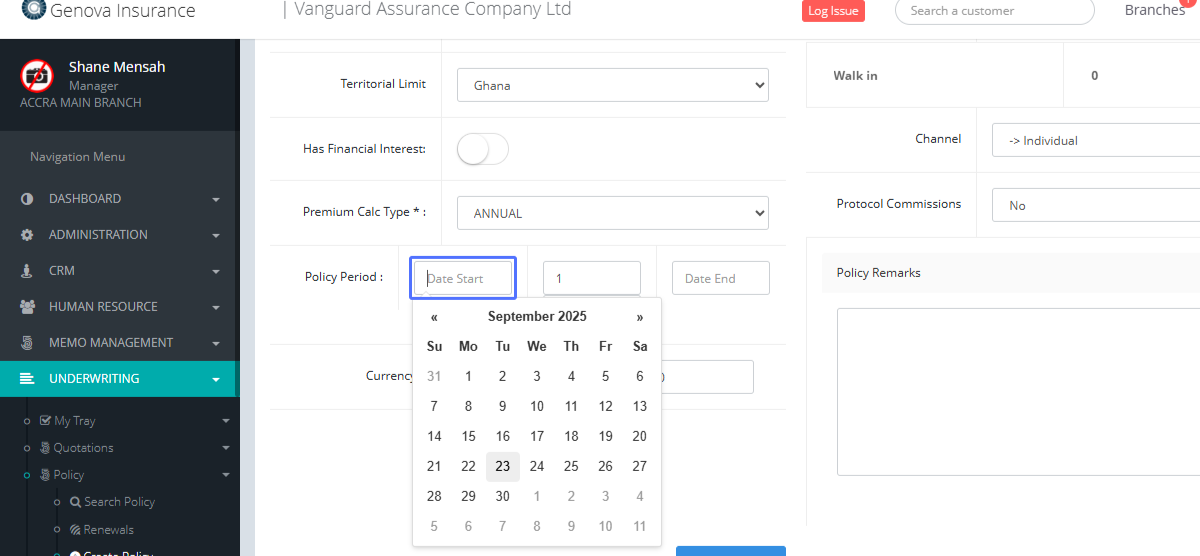
Select Policy Start Date: Click on the correct date from the calendar.
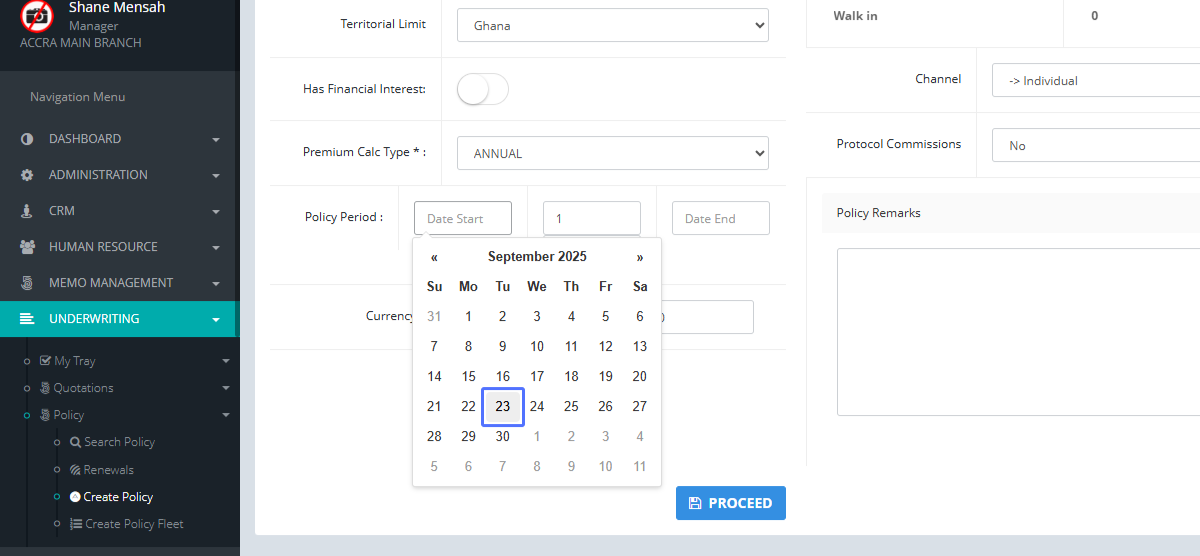
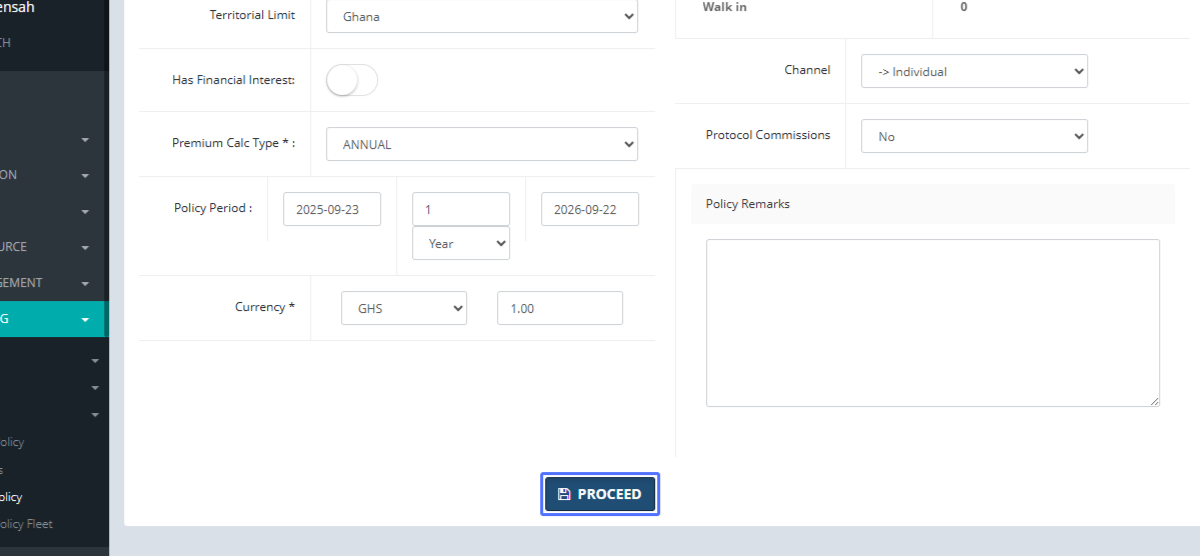
Proceed to Risk Details: Click the "PROCEED" button.
Add New Risk: Click the "Add" button to add a new risk.
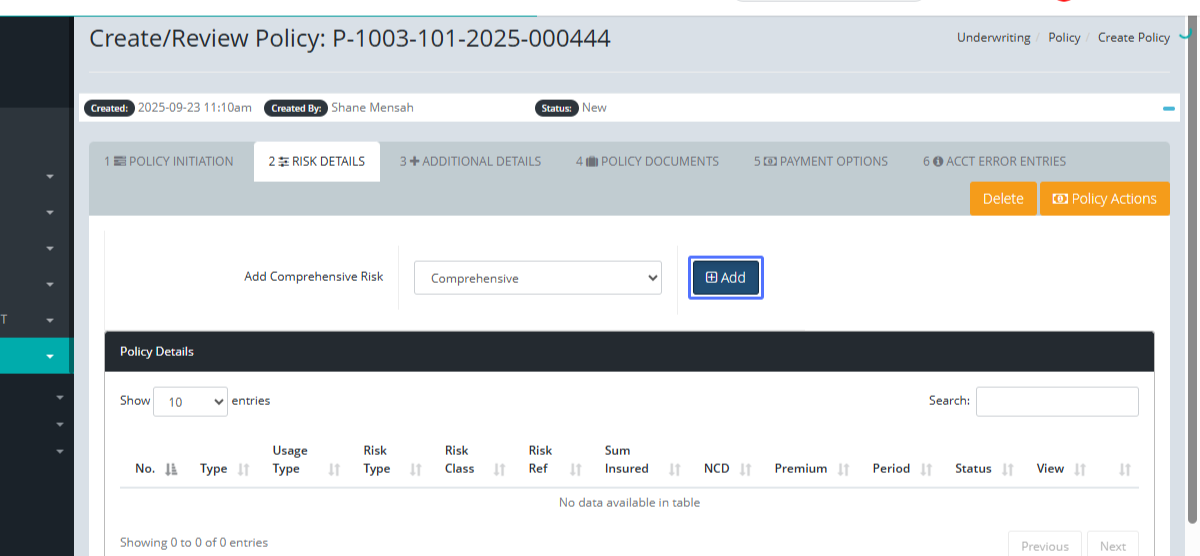
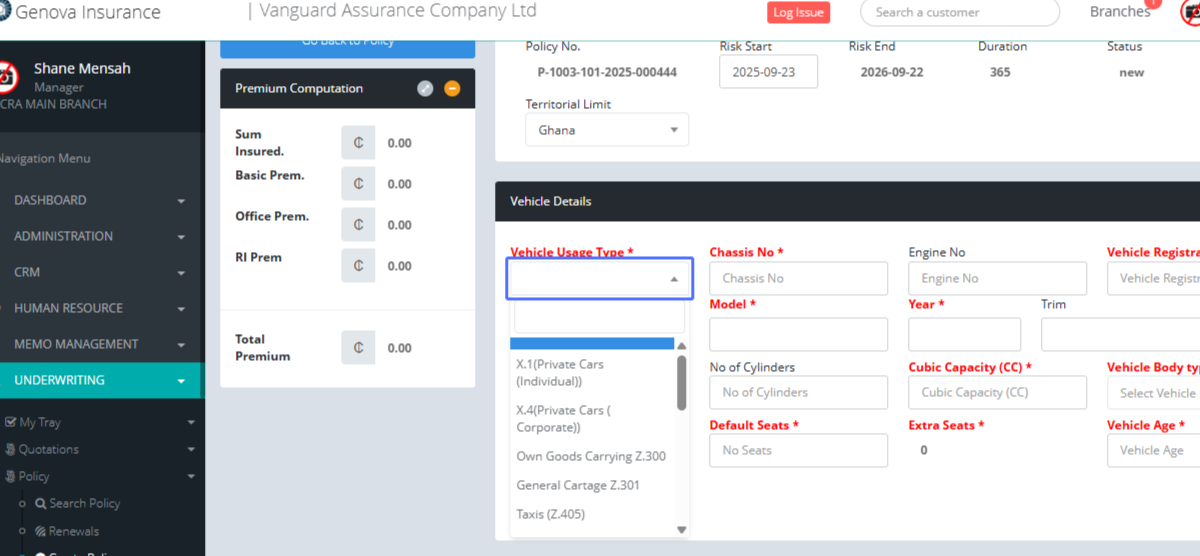
Select Vehicle Usage Type: Click to open the dropdown for vehicle usage.
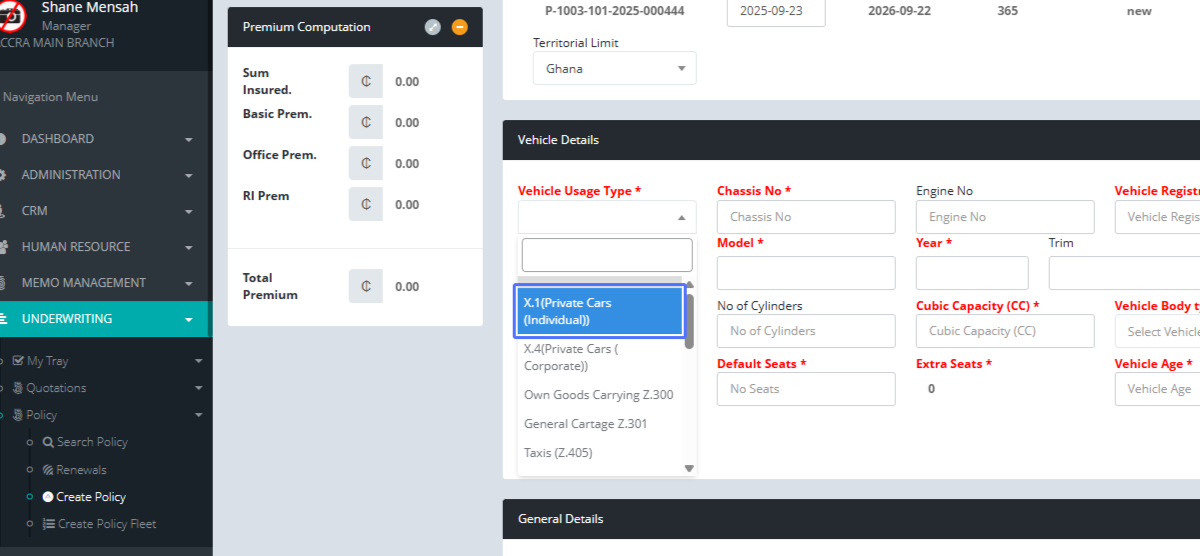
Choose Vehicle Usage: Select the appropriate vehicle usage type (e.g., Private Car).
Enter Chassis Number: Input the vehicle's chassis number.
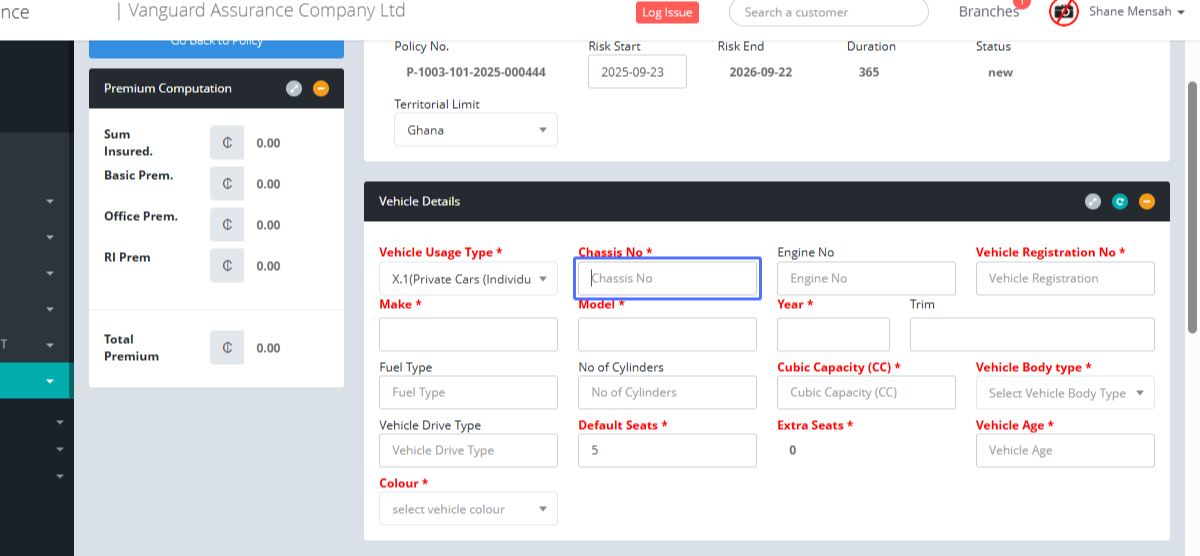
Enter Engine Number: Input the vehicle's engine number.
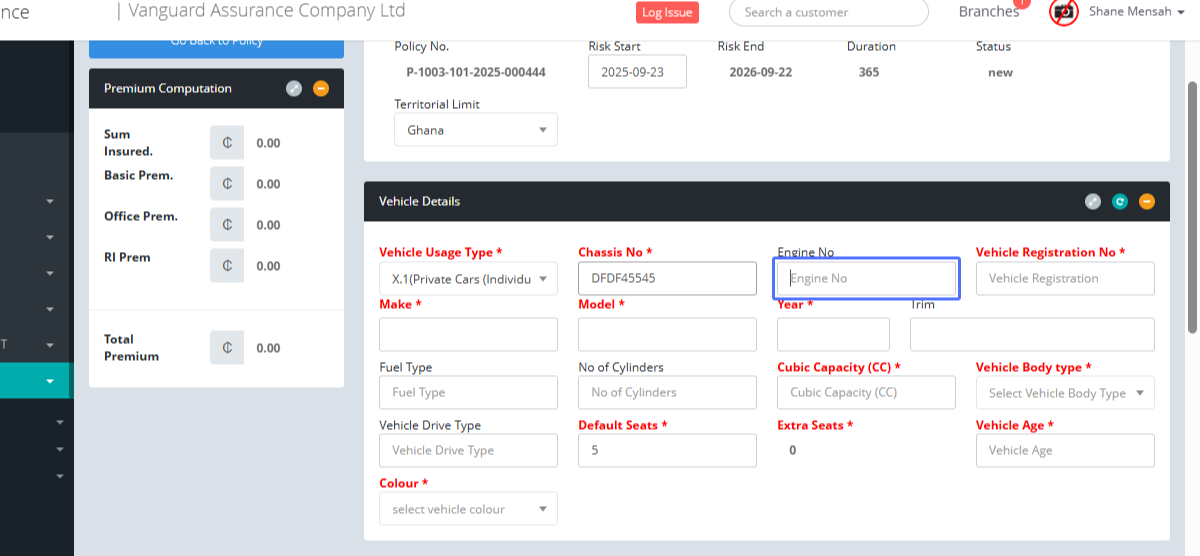
Enter Vehicle Registration Number: Input the vehicle's registration number.
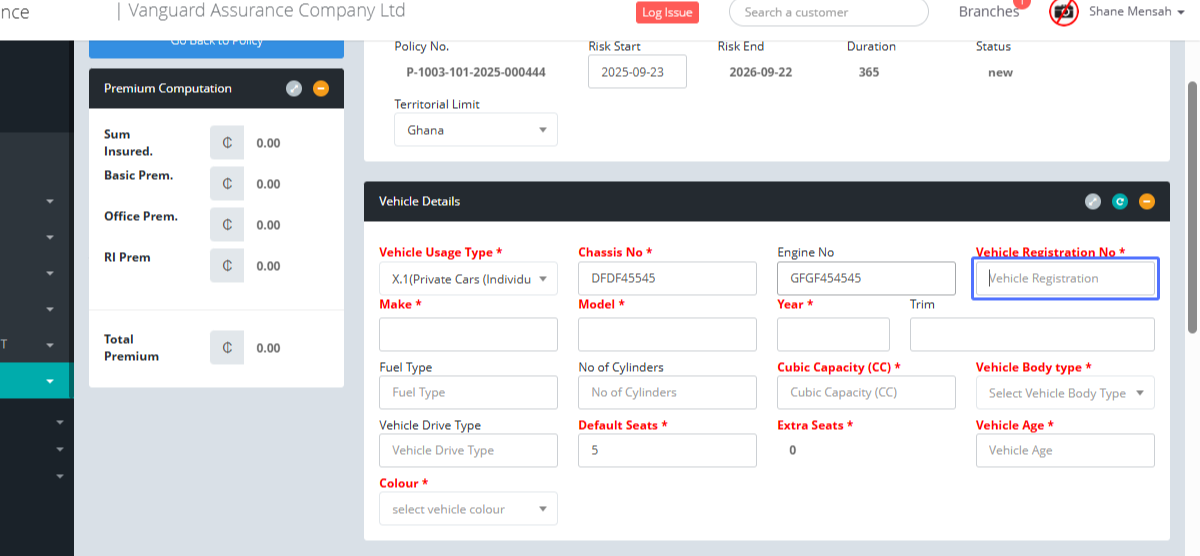
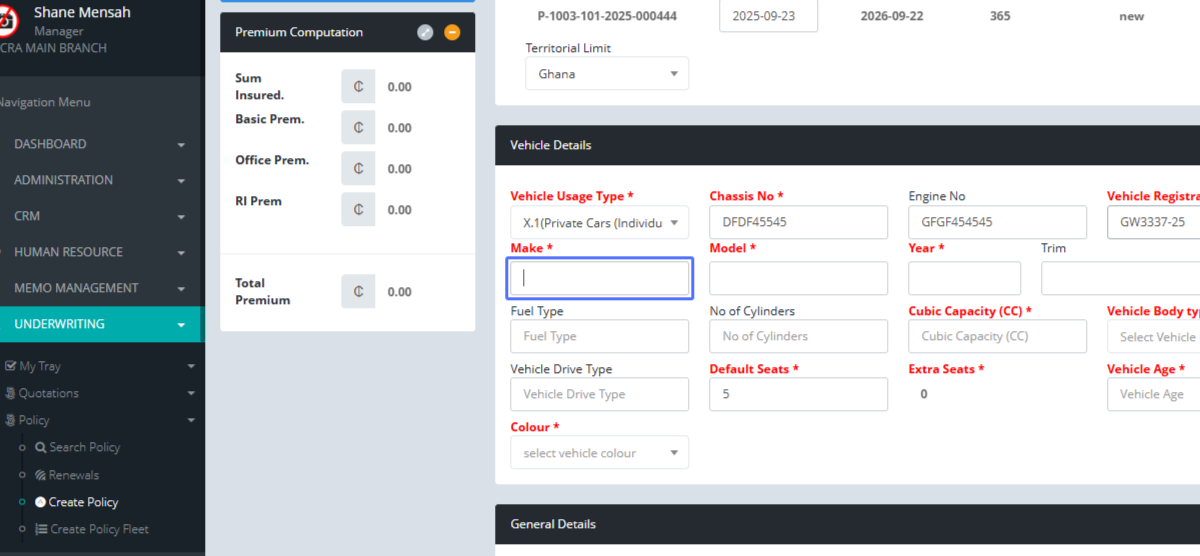
Enter Vehicle Make: Input the vehicle's make. Users can add a vehicle that doesn’t exist in our system.
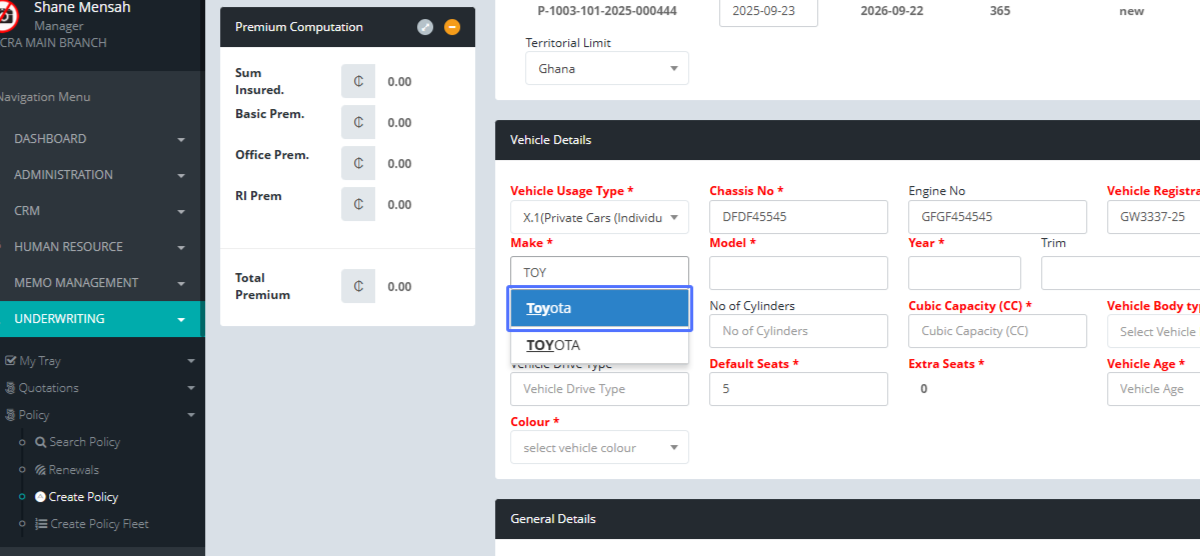
Select Vehicle Make: Users can also select the correct vehicle make from the suggestions.
Enter Vehicle Model: Users are also given the option to Input the vehicle's model, which might not exist within the system.
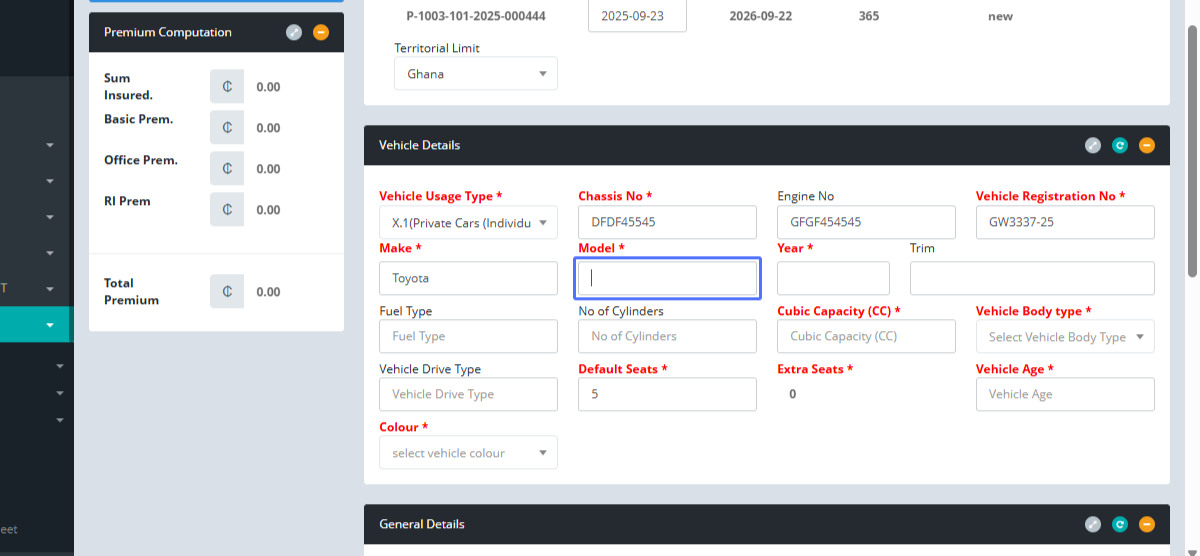
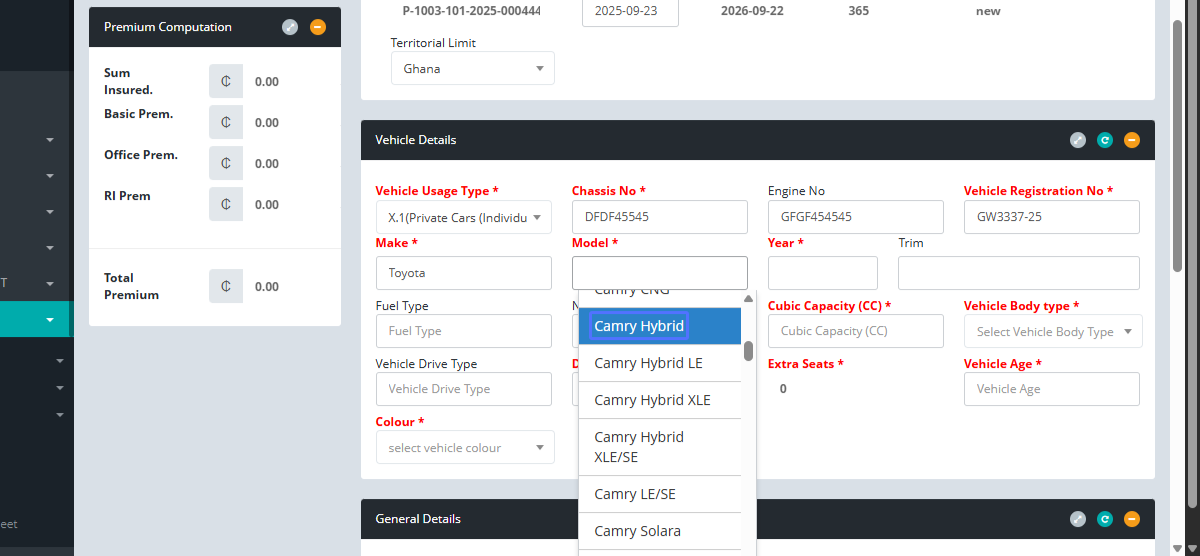
Select Vehicle Model: If the vehicle model exists, Users can select the correct vehicle model from the suggestions.
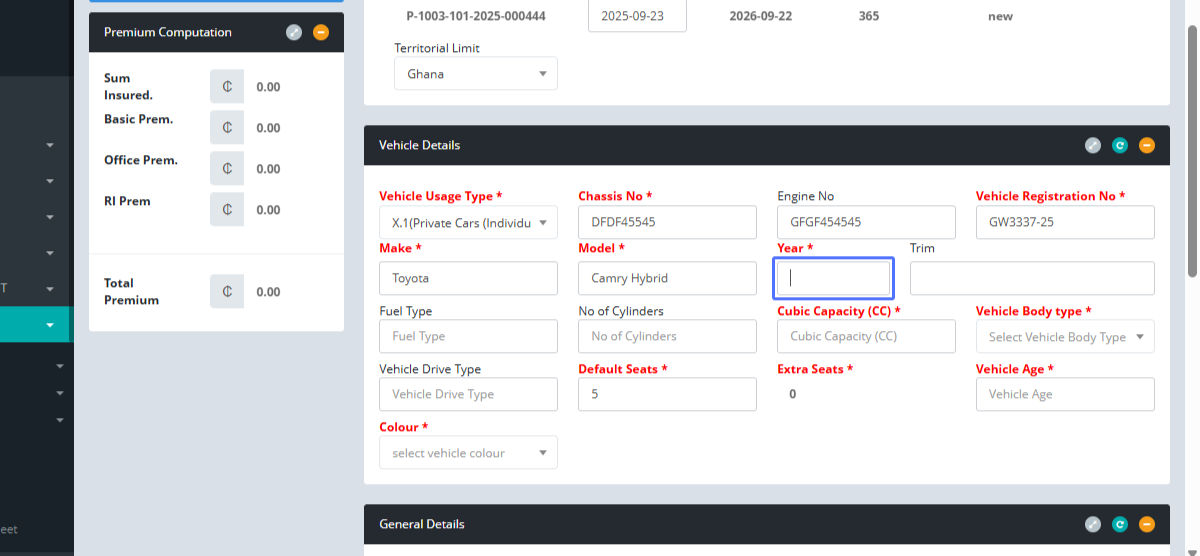
Enter Vehicle Year of Manufacture: Users are mandated to Input the vehicle's year of manufacture.
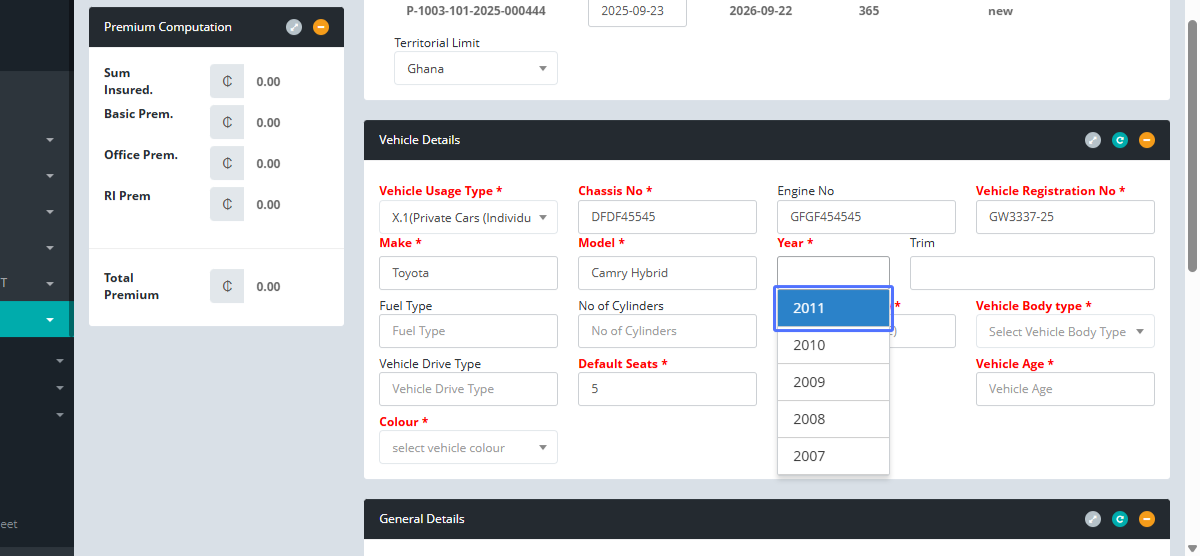
Select Vehicle Year: Users can select the correct vehicle year from the suggestions, which auto calculates the vehicle age as well.
Enter Vehicle Trim: Users can Input the vehicle's trim details.
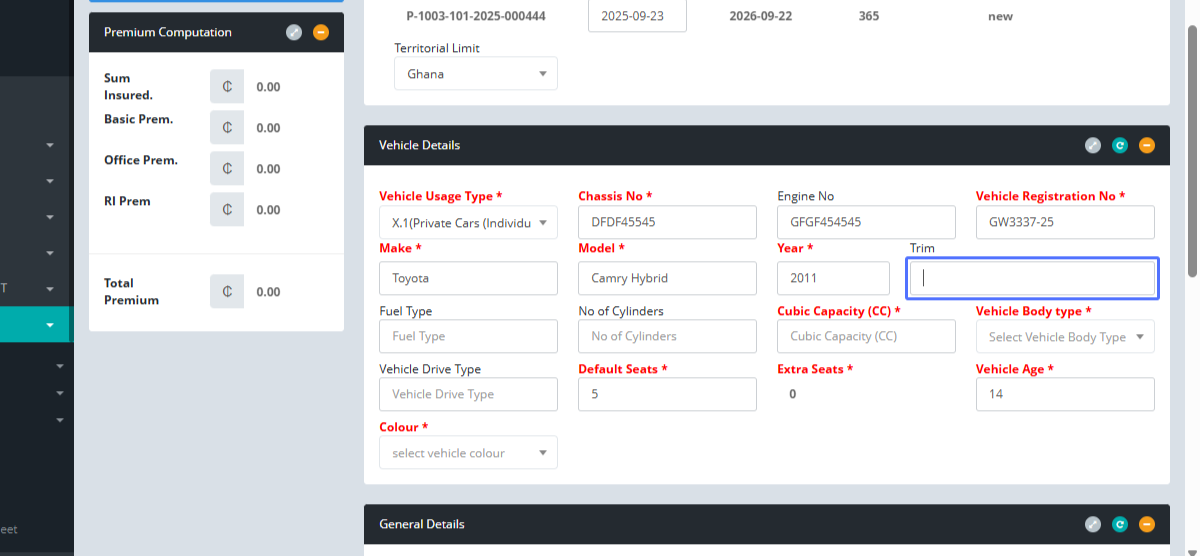
Select Vehicle Trim: Users can also select the vehicle trim from the suggestions, which auto-populates the remaining fields.
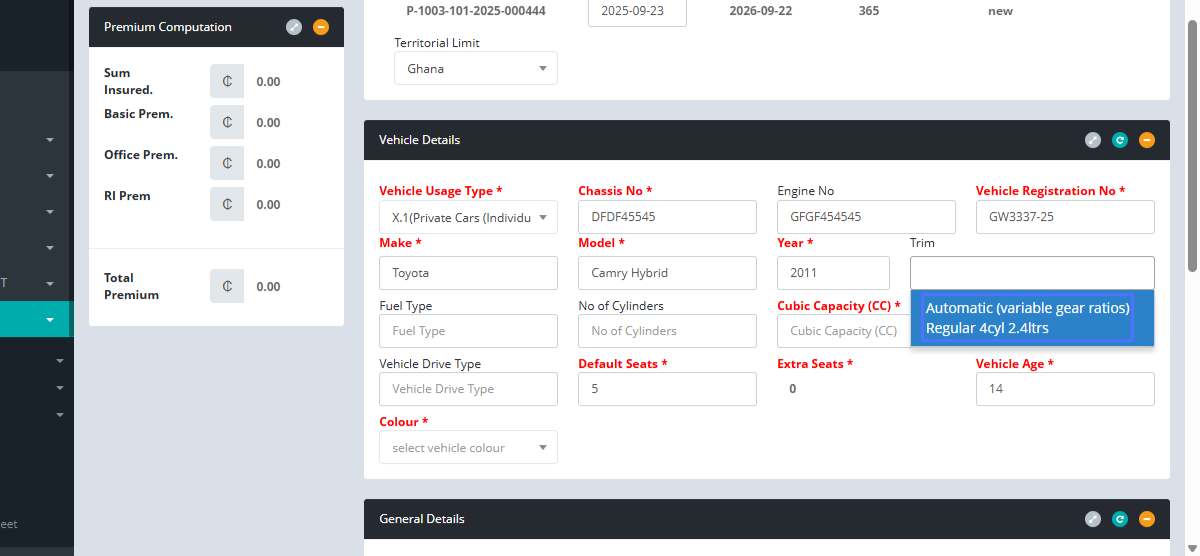
Select Vehicle Body Type: Users are mandated to input the vehicle body type.
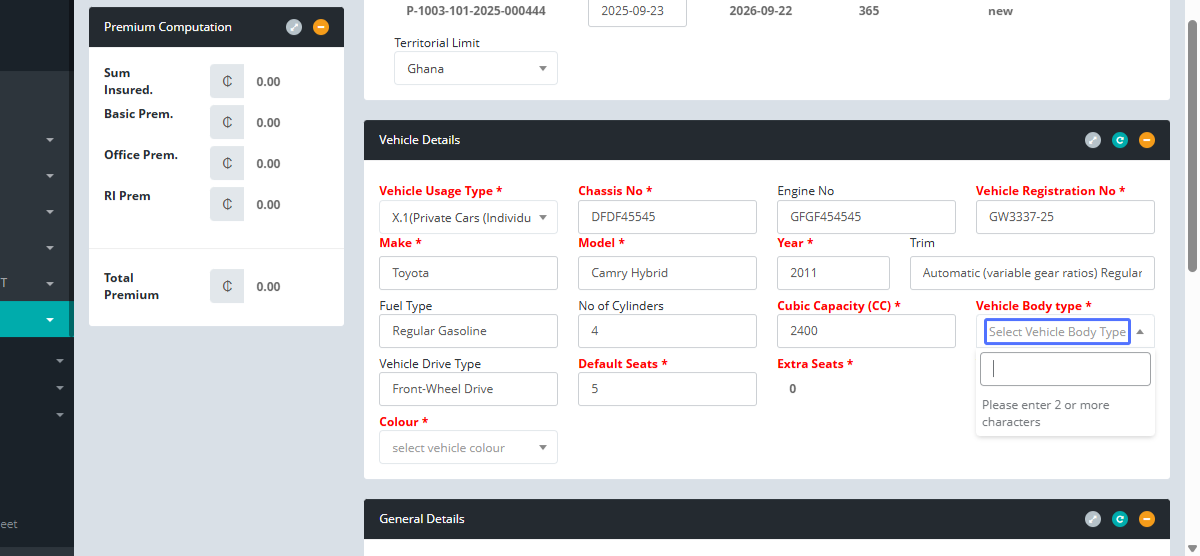
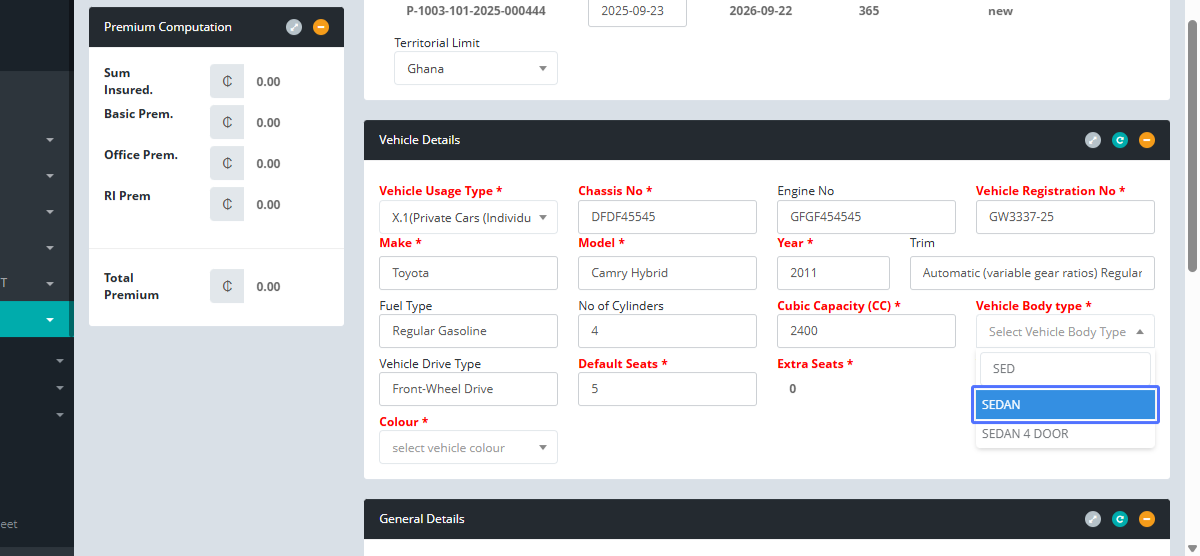
Choose Vehicle Body Type: Alternatively, the vehicle body type can be selected if it exists within our system.
Select Vehicle Colour: Click to select the vehicle colour. Users are provided with a text field to enter the color of the vehicle.
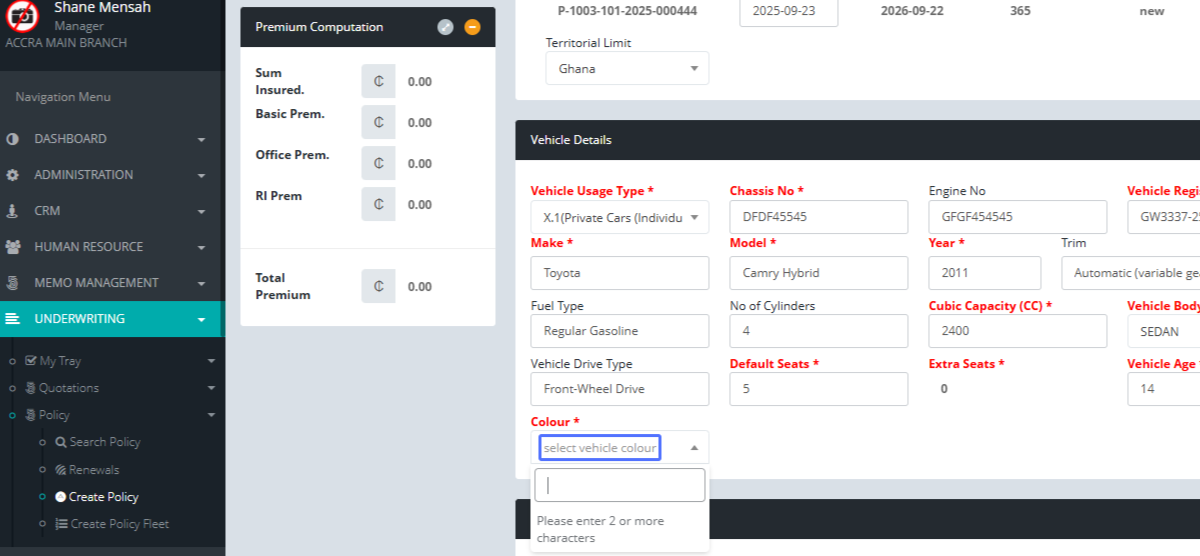
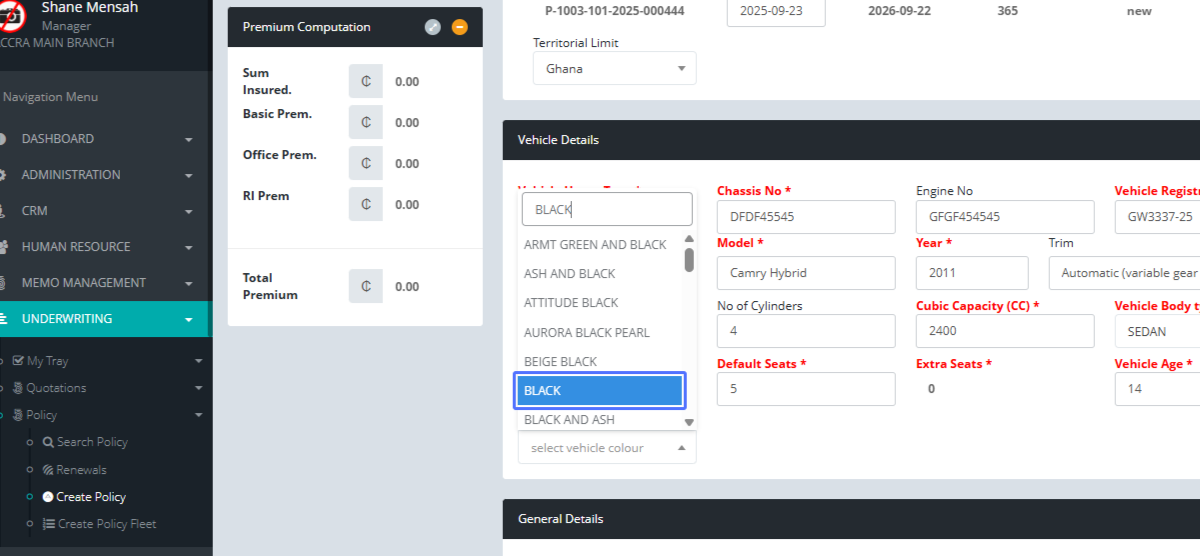
Choose Vehicle Colour: If, the color or color combination exists, Users can also select the appropriate vehicle colour (e.g., Black).
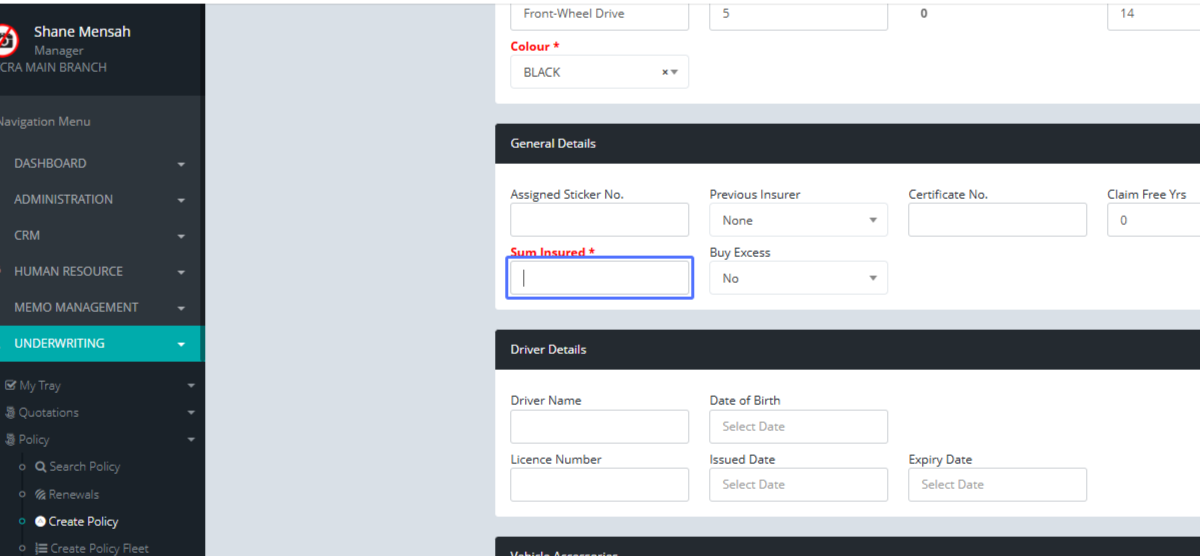
Enter Sum Insured: Finally, users can Input the sum insured amount.
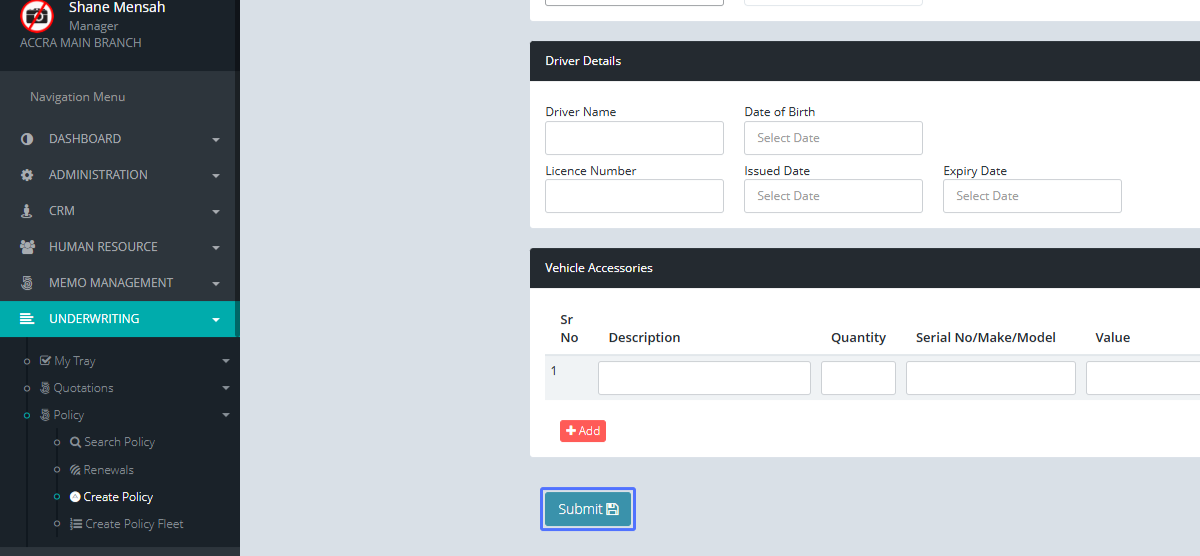
Submit Risk Details: Click the "Submit" button to save the risk details for the vehicle you just added.
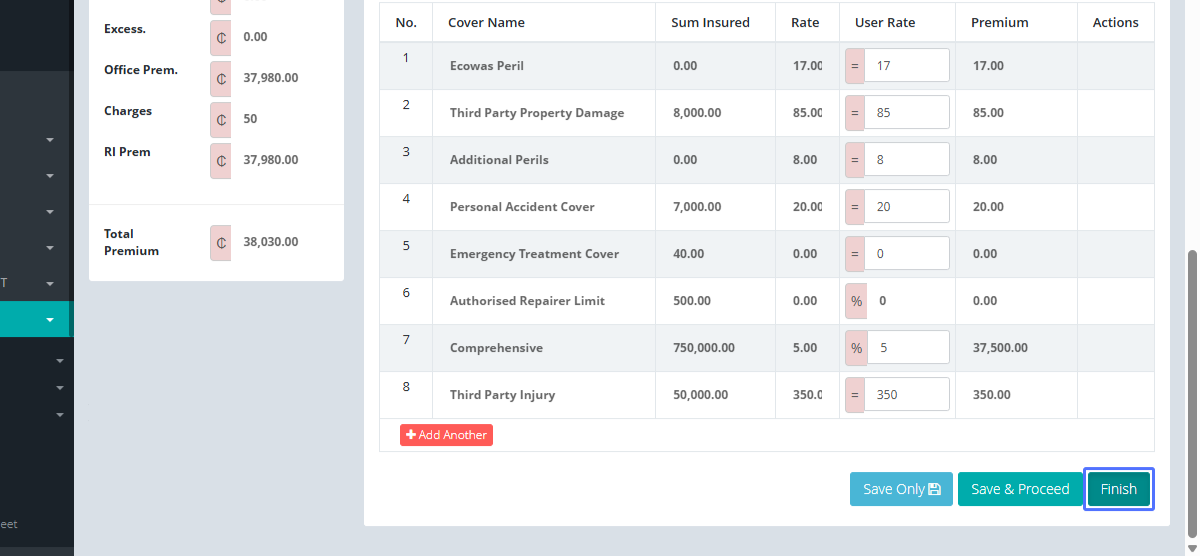
Risk Covers: You will then be navigated to the covers page. Click "Save Only" to save without completing all fields (if applicable) to calculate the premiums for the vehicle.
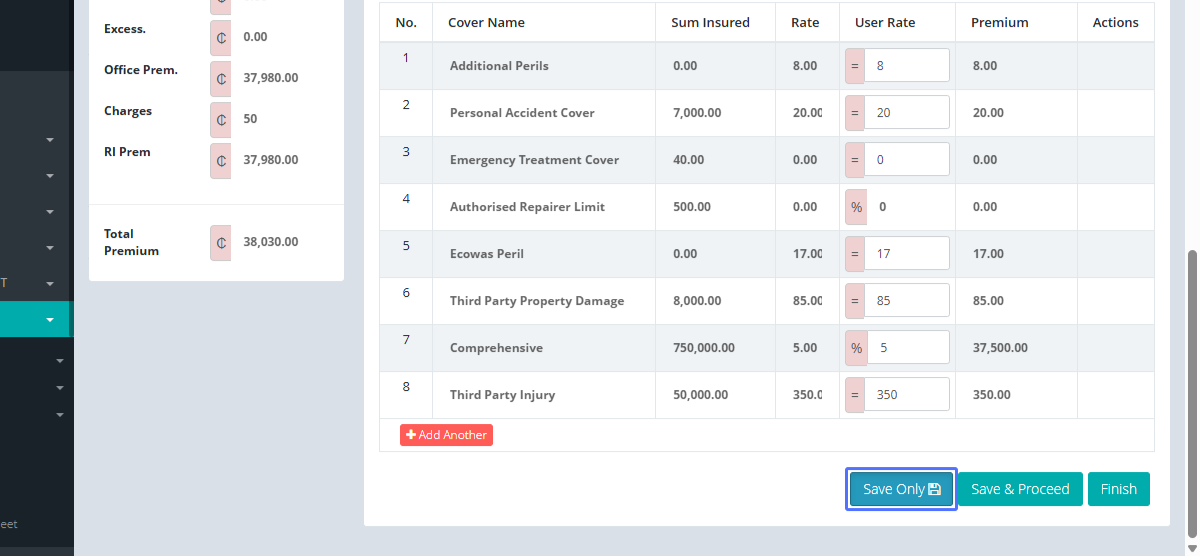
Finish Policy Creation: Once, the user is satisfied with the premiums. Click "Finish" to finalize the policy creation. Users can add another cover, to the default covers for the specific product (if applicable).