Genova
Search
Vanguard Genova: Create and Review Policy Guide
This guide provides a step-by-step process for searching and reviewing policies within the Genova system. Each step includes screenshots to visually aid users through the process, ensuring efficient and accurate policy management. This document covers the creation and review of policy LIC/HQ/MOT/TP/25/001 as an example.
Start url: https://loyaltylive.genovainsure.com//cia/underwriting/search-policy
Tab Name: Search Policy - GENOVA INSURANCE
Navigating to the Policy Search Page: Click on the Underwriting Button.
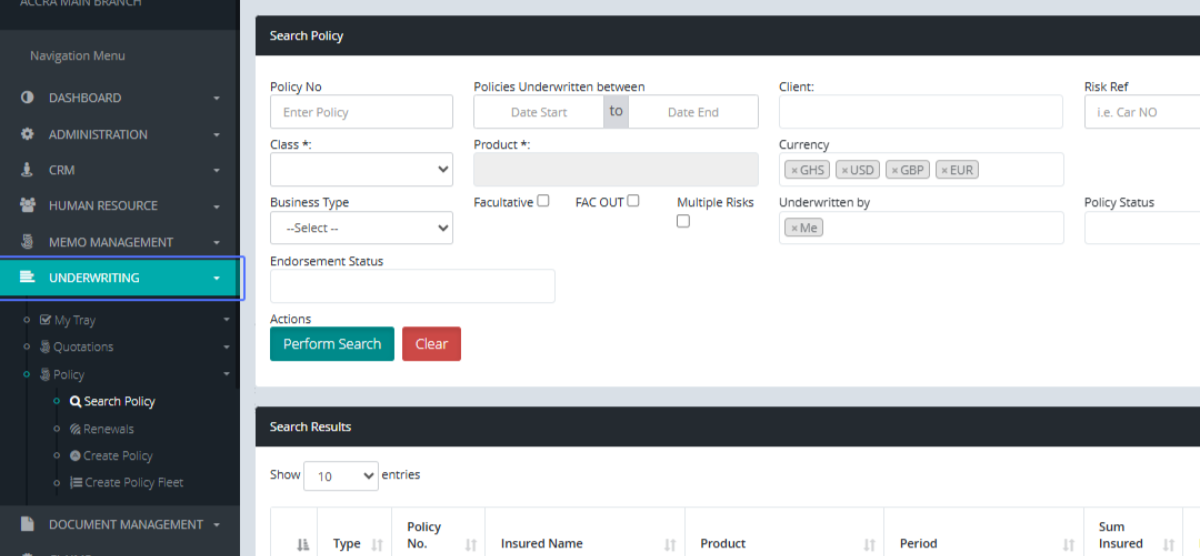
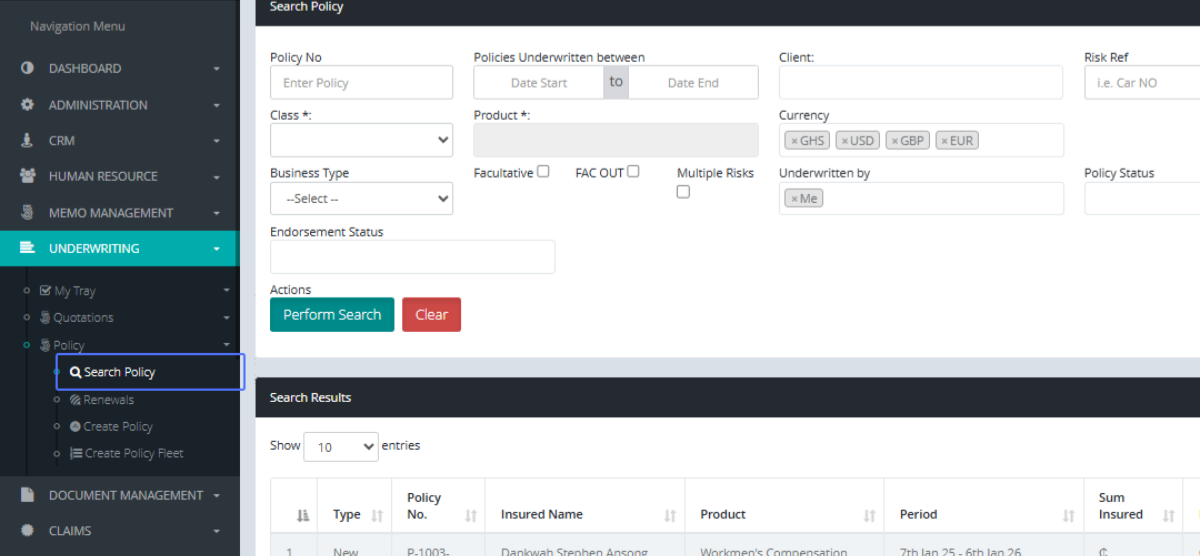
Selecting the "Search Policy" Link: Click the Search Policy Button.
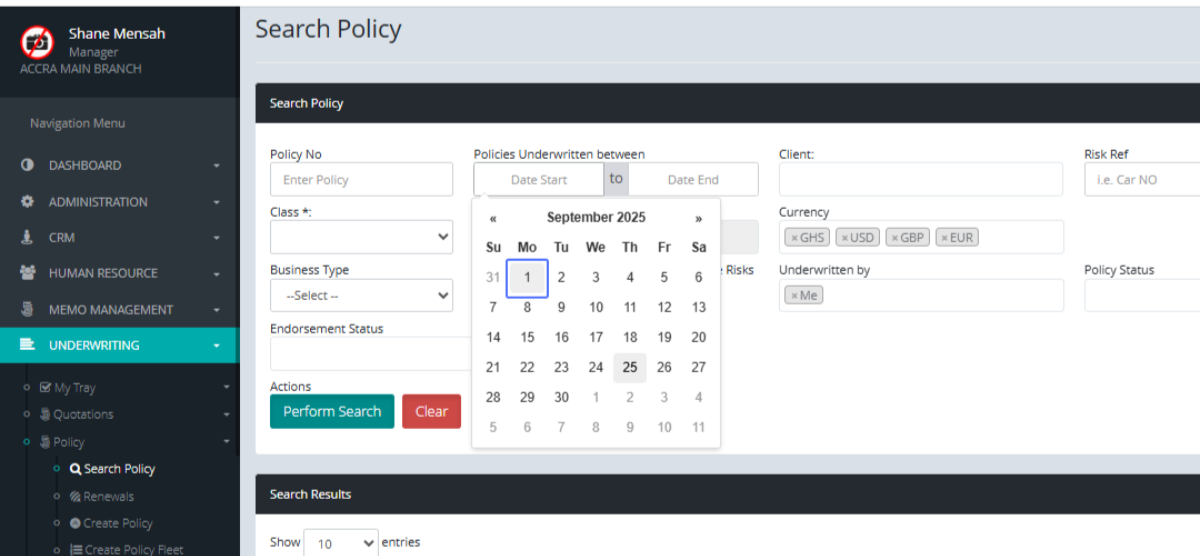
Entering Policy Search Criteria: Click the Date Start field to open the calendar modal to select the start date the policies are underwritten from.
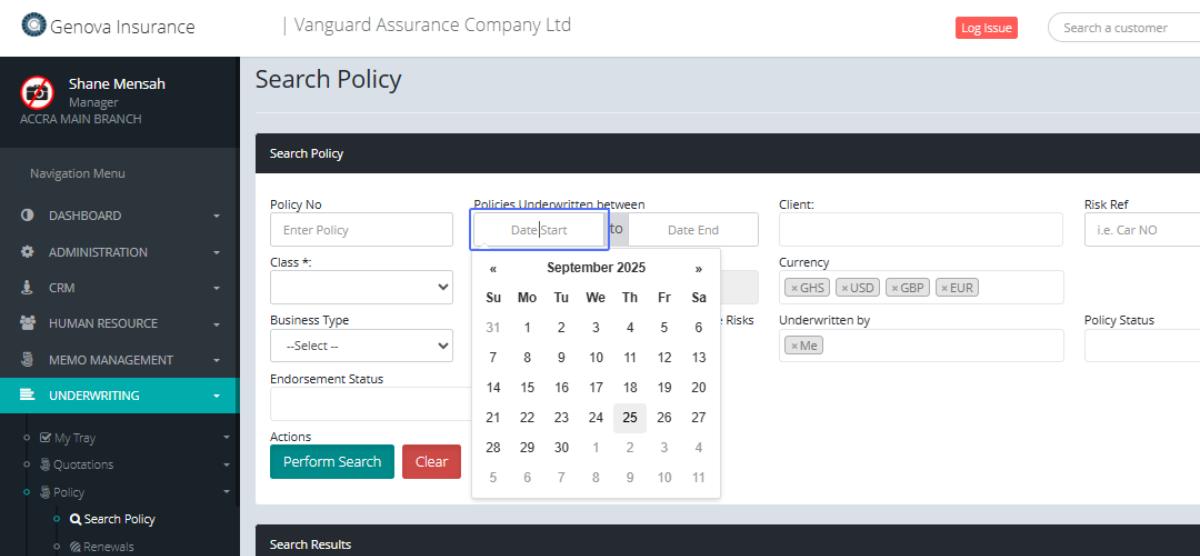
Selecting a Date from the Calendar: Select the Start Date of the Policies.
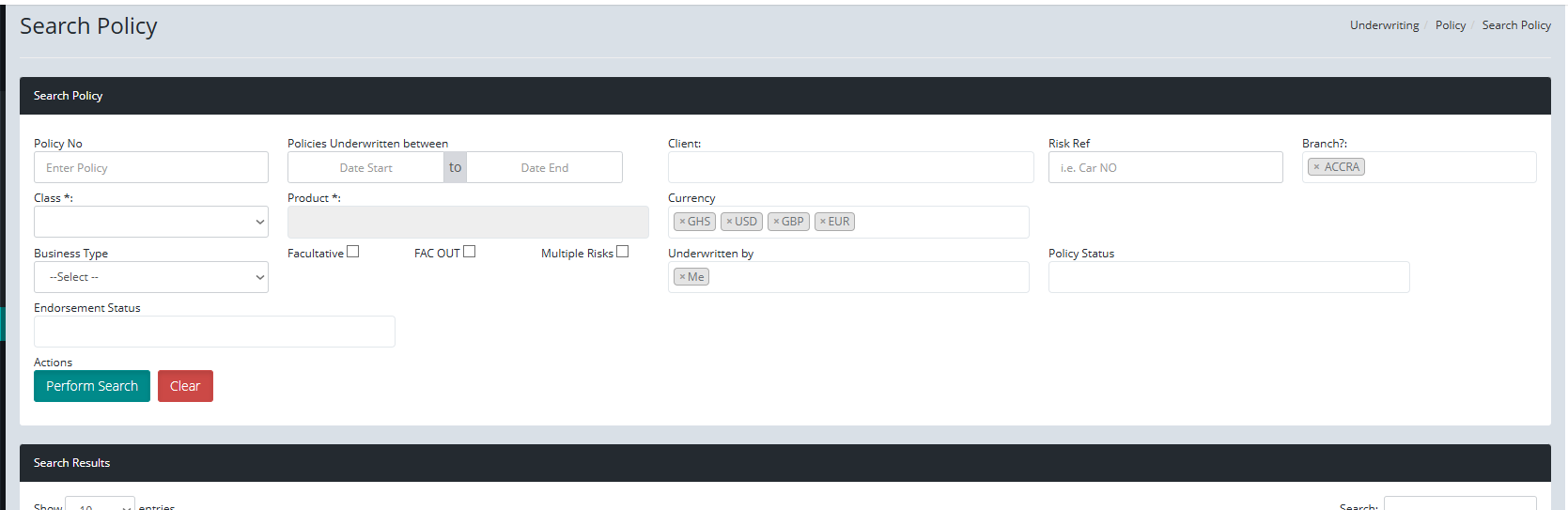
Removing a Selected User from Filter: the system Automatically selects policies written by you.
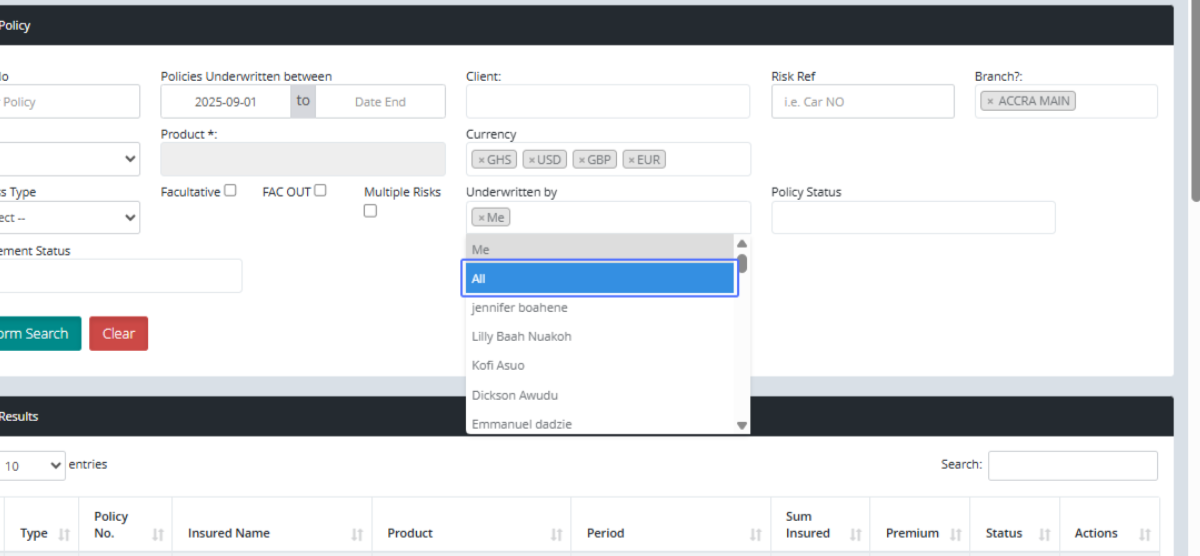
Selecting "All" Users in Filter: Select “ALL” to pull all policies written within the system.
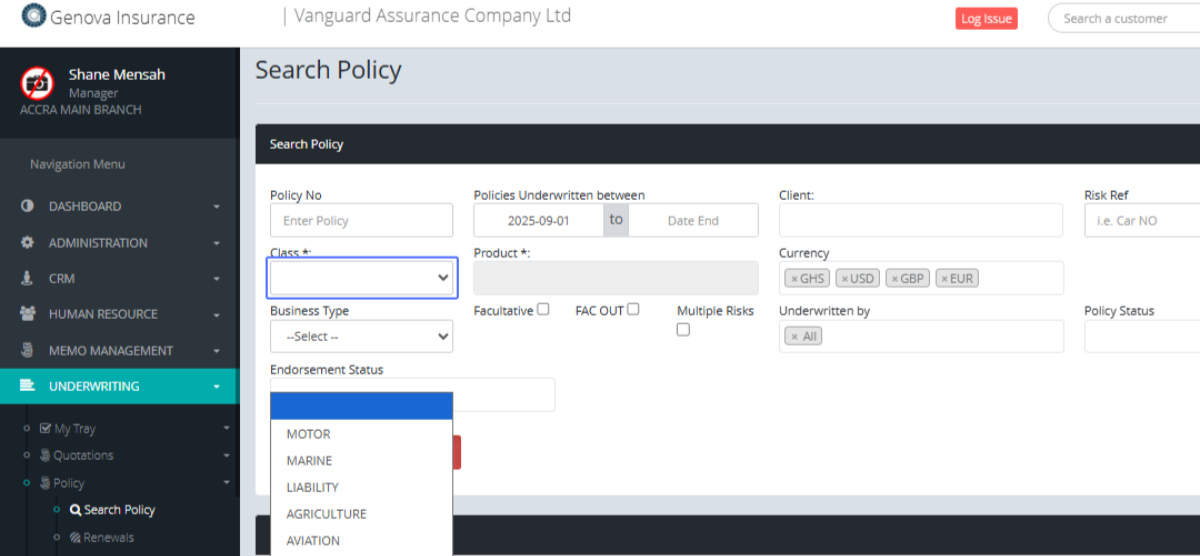
Selecting a Class of Business: Users can further filter their search results by selecting the desired Class of Business.
Accessing the Product Dropdown: Users can further filter out polices by selecting the desired Product as well.
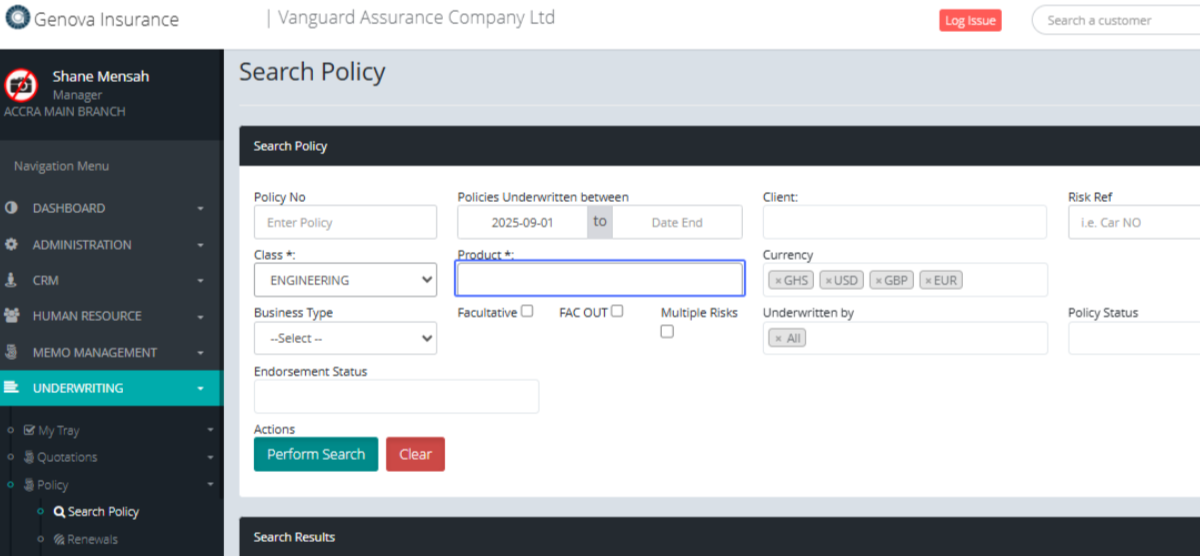
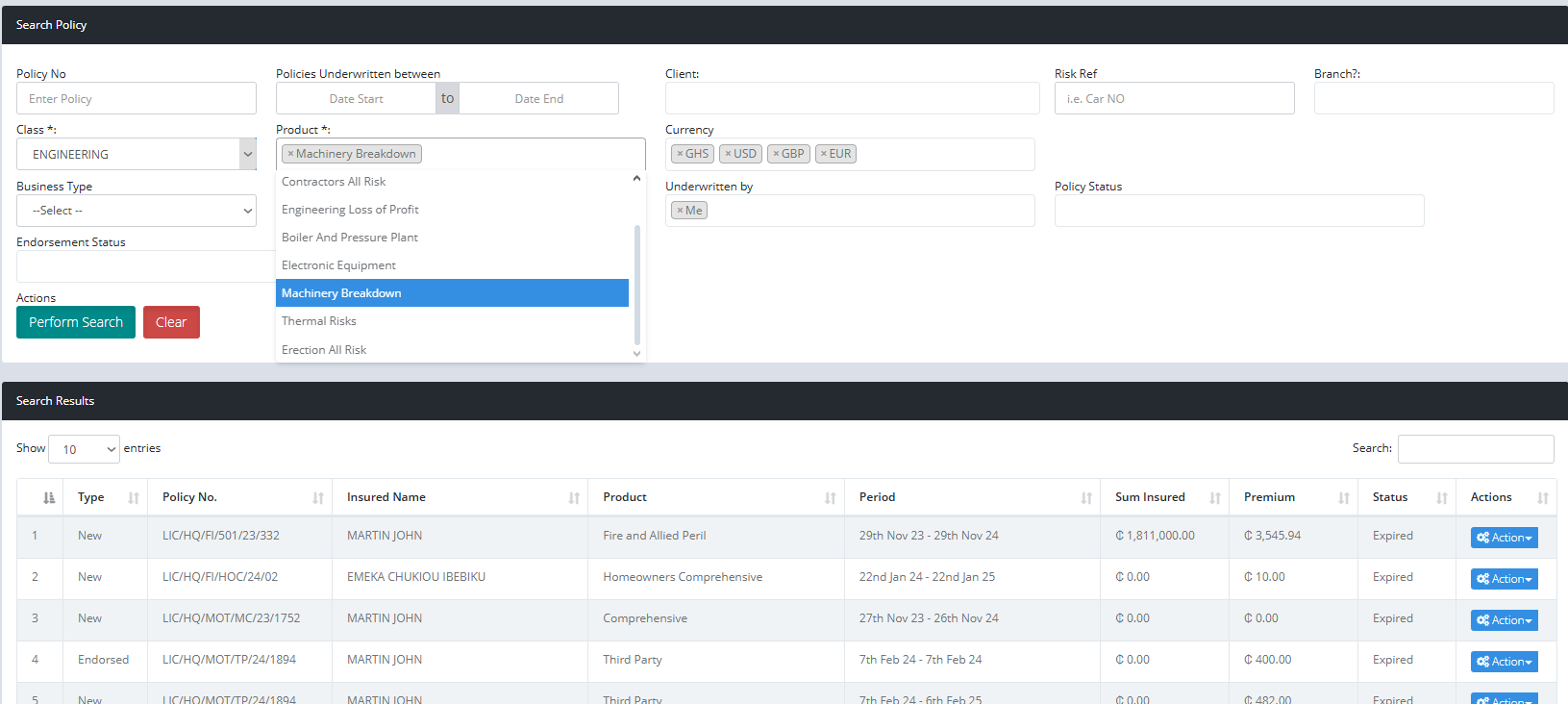
Selecting a Product: Users can click on the Product dropdown list. It can be one product or multiple.
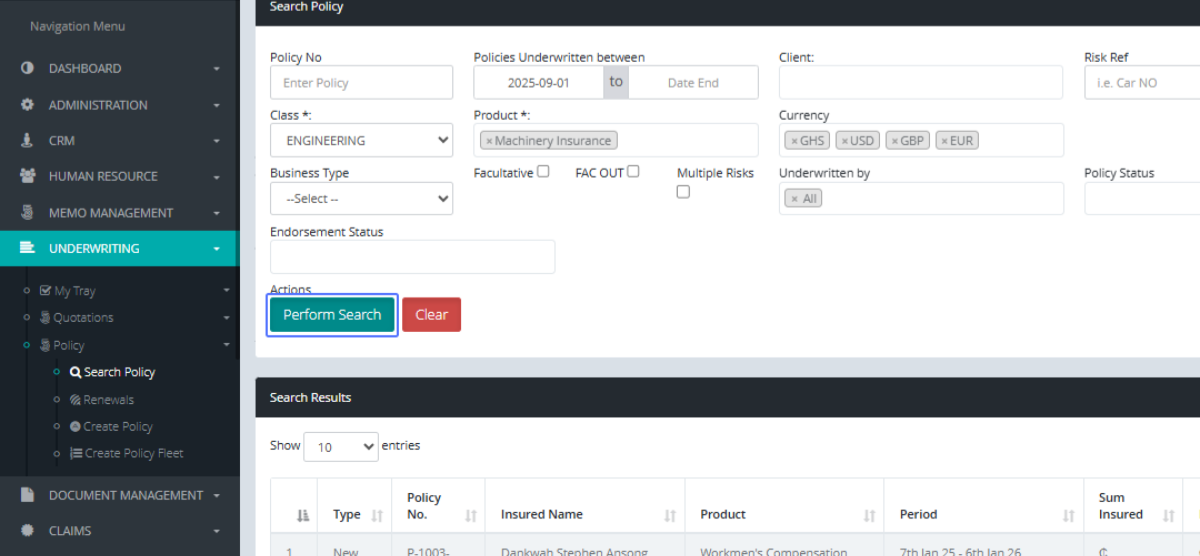
Initiating the Policy Search: If the User is satisfied, with the parameters, click on the Perform Search Button to search for the policies based on your parameters.
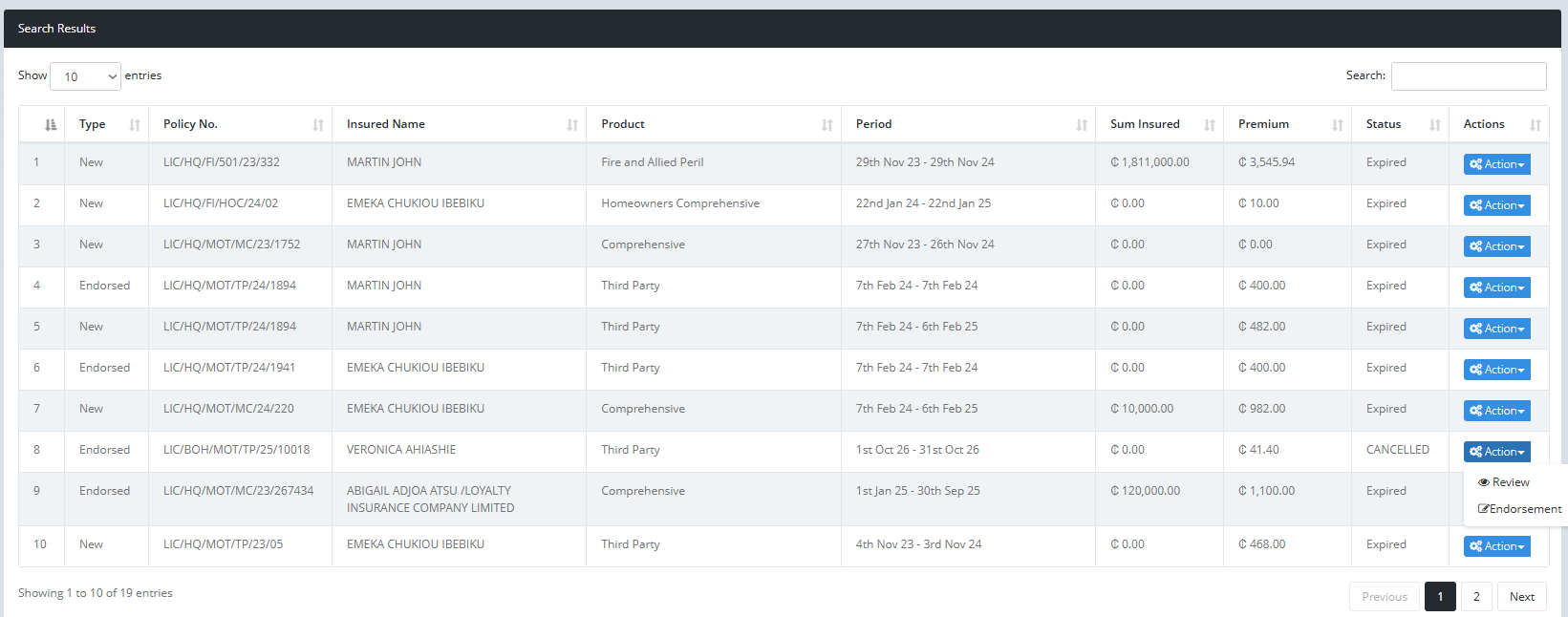
Accessing Policy Actions: When you see your desired policy, Click on the “Actions” Button, to see the actions that can be taken on the policy
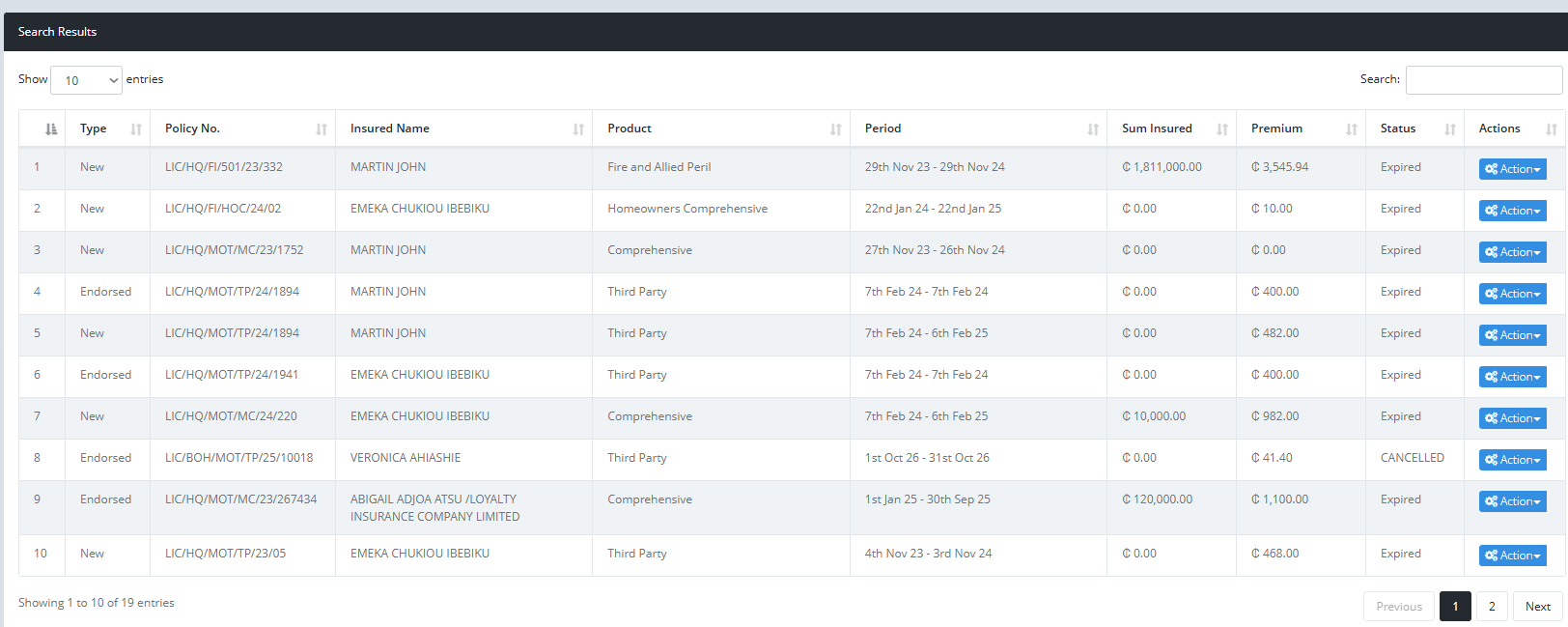
Selecting "Review" Action: As shown, this Policy has an endorsement. Click on the Review Button to review the Policy.
Tab Name: Create Policy - GENOVA INSURANCE
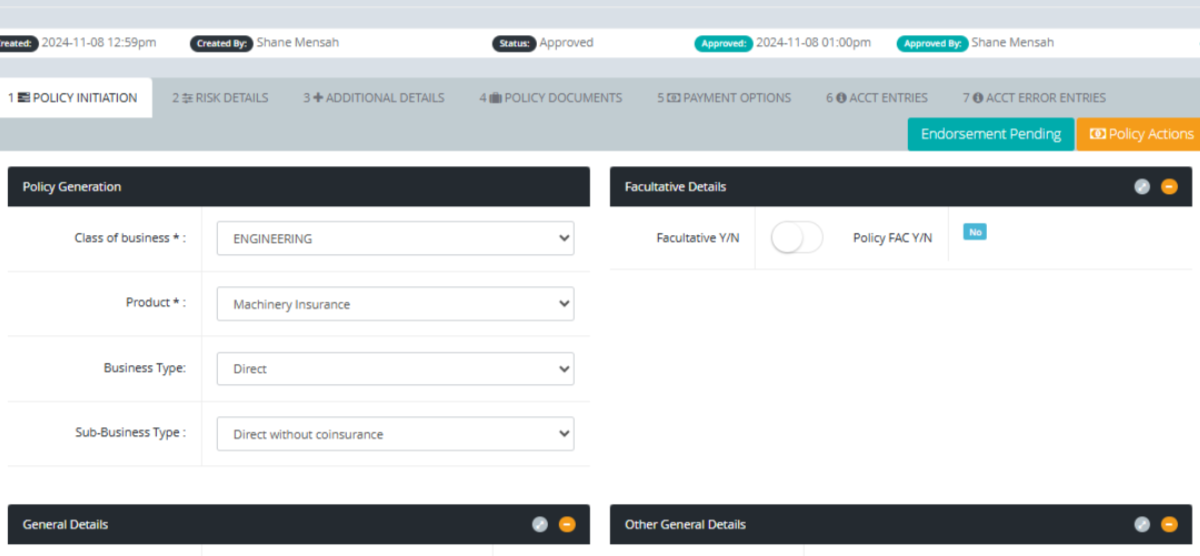
Reviewing the Policy : You are then taken to the policy to review, its details.